Digital Security for Normal People
Disclaimer: The video this post is based on was written and spoken entirely in my own words, and AI was not involved in scripting it. This blog post was generated by AI exclusively from the transcript of that video.
Could a computer guess your password instantly?
What if your current passwords could be guessed instantly by a computer, but there's a very easy way to make it take thousands of years to crack your code? That's what this post covers. It's the written version of video 2 in my six-part series Technology for Normal People. Video link: Watch on YouTube.
The topic is digital security, but it isn't going to be boring and technical. These are practical tips to keep yourself and your loved ones safe and protected in the digital world.
Living in our modern world requires a certain amount of digital literacy. Almost everything you interact with has some level of technology, including fundamental infrastructure like banks, where you often access and pay with your money digitally. That brings huge convenience and, in many ways, added security. Like anything in life, it also has drawbacks you have to protect against. I fundamentally believe the benefits of living in this digital world outweigh the risks and drawbacks. You just have to be smart about it, and it might take a smidgen of work for a lot of convenience and safety.
Security vs. privacy
Two things often get conflated: security and privacy. They are related, and they cross over in many areas, but they are fundamentally different.
- Privacy is information about you, or your own data, that you have a right to protect and share as you desire.
- Security is access to that data and to your tools.
For example, protecting your privacy might keep your address and your kids' names safe. Security makes sure no one can get into your phone or your bank account, and that only you can access certain things. I'll keep coming back to a bank account as an example because it's tangible and we all want our money protected, but the same principles apply to almost everything.
Passwords: how they protect your accounts
When you walk into a bank and want to withdraw $100, you have to prove you own that account. The same principle applies online. When you go to your bank's website or app, you need to prove you're accessing your own account. In its simplest form, we created passwords. You give your name plus a password, and the bank recognizes it and gives you access.
The downside of passwords is that it's hard to manage lots of different ones. You might use the same one for tons of accounts so you only have to remember one thing. That makes it easy for you, but also easy for bad actors. Say you don't care much about the account you made for the local pizza chain, and you use the same password there as you do for your bank. That chain probably doesn't have world-class security. If its database gets hacked and your password leaks, bad actors can take that password and try it at your bank. Because you used the same one in both places, they'll get in.
So passwords are a rudimentary way of securing something, but they're better than nothing. We went from requiring passwords on most things to requiring strong passwords on most things.
Why strong passwords matter
Think of a password like a combination lock. A 4-digit lock has 10,000 possible combinations. Someone at the gym trying to open your lock won't get through 10,000 without a lot of patience. But in the digital world, a computer can go through 10,000 iterations almost instantly. An attacker knows your name or username, which isn't private, and can "brute force" their way into your password by guessing every single combination.
That's where strong passwords come in. Every new variable you add makes the number of combinations grow exponentially.
| Password | How long a computer takes to brute force it |
|---|---|
| 4 digits (10,000 combinations) | Almost instantly |
| 8 characters, lowercase only | Almost instantly |
| 12 characters with uppercase, lowercase, symbols, and numbers | Thousands of years |
The downside of strong passwords is that they're difficult to remember. You either use the same strong password everywhere, which brings back the pizza chain vulnerability, or you use a different strong password for every site, which is very hard to remember with 12 or more characters of mixed letters, numbers, and symbols.
Password managers
That's where password managers come in. A password manager takes all your strong passwords and puts them in a vault, then requires a single strong password to get in. You remember one strong password to open the vault, and all the unique strong passwords for all your different sites are inside it.
I highly recommend using a password manager. There are some great paid options with very strong feature sets. If you're an iPhone user, you also have one built in: the Passwords app.
A password manager introduces a new risk. Before, if the pizza chain had one password and your bank another, hacking the pizza chain couldn't get anyone into your bank account, because the passwords were different. Now you have a single point of access, so you need to guard it. There are basically two ways that password could be compromised: you could give it to someone, or someone could take it.
The taking part is covered. If it's a strong password, it would probably take thousands of years to guess. So the real danger lies in you giving it away.
Phishing and social engineering
You might say, of course I'm not going to give my password to someone. That's where social engineering comes in, because people will try to trick you into handing it over. You may have heard the term phishing. It shows up in many forms, but the most common is an email pretending to be something legitimate. Imagine an email that says your Amazon account has been breached and to click here to make sure everything is safe.
In a phishing scam, the button can very sneakily have a different link behind it. You click, and you land on a website that looks exactly like amazon.com. You type in your username and password, but it isn't actually Amazon. It's a dummy website set up by a bad actor, and you just gave them your username and password so they can go hack into whatever account they want.
So you have to guard against social engineering and phishing, where people try to get your credentials. It's annoying to deal with this level of whack-a-mole in the digital world. Luckily, tech companies are aware of it, and plenty of good people are working hard to make it easier for everyday people to protect themselves.
How to spot phishing scams and avoid them is probably a whole other video, and I'd encourage you to look it up if you're interested. For now, be very careful online when you log in, and do everything you can to make sure you're looking at a legitimate website.
Passkeys and two-factor authentication
There's been a new innovation in security called a passkey. A passkey ties your biometric authentication, such as your fingerprint or face scan, which is very difficult for anyone to replicate, to a specific website.
For example, if my bank supports passkeys, I could create one for my bank account. It says this fingerprint unlocks my bank account, but it only unlocks that one website. If someone replicates the site and I end up on a scam website, my passkey would not work there. You need both ends of the system for a passkey to work: your biometric authentication and the receiving end. Passkeys are incredibly powerful. Support is still rolling out, so it's not everywhere yet, but it's in a lot of places.
Two-factor authentication (2FA)
Two-factor authentication, or 2FA for short, makes it so that someone who has your password also needs another way in. Think of it as putting two locks on a door that each require a different key. One key is the password. If your password gets compromised, that's a bummer, but they still need the other key. That other key is often your device. You might get a text message with a code to type in (and you shouldn't share that code with anybody), or an email with a code to log in. Savvy users can have codes generated in their password manager already.
This also protects against phishing and other social engineering. They might get your password, but as long as they don't have your phone or your email account, they can't unlock the second lock on the door and can't get in.
Big takeaways
- If you have weak passwords, make them strong.
- If you have strong passwords, get a password manager.
- If you have a password manager, start using passkeys.
- Set up two-factor authentication anywhere it's offered.
Protect the keys to the kingdom: your Apple account and your iPhone
Let's use Apple Passwords as an example. How do you get into Apple Passwords? With your Apple account. How do you get into your Apple account? Probably with a password, and if you're on top of things, with two-factor authentication already set up. You also probably have a type of passkey, which is your iPhone authentication.
If your password manager holds the keys to the kingdom, because with it you can get into anything, such as bank accounts, you need to go upstream and ask how to protect it:
- Use a strong password on your Apple account.
- Set up two-factor authentication on your Apple account.
- Secure the iPhone you get in through.
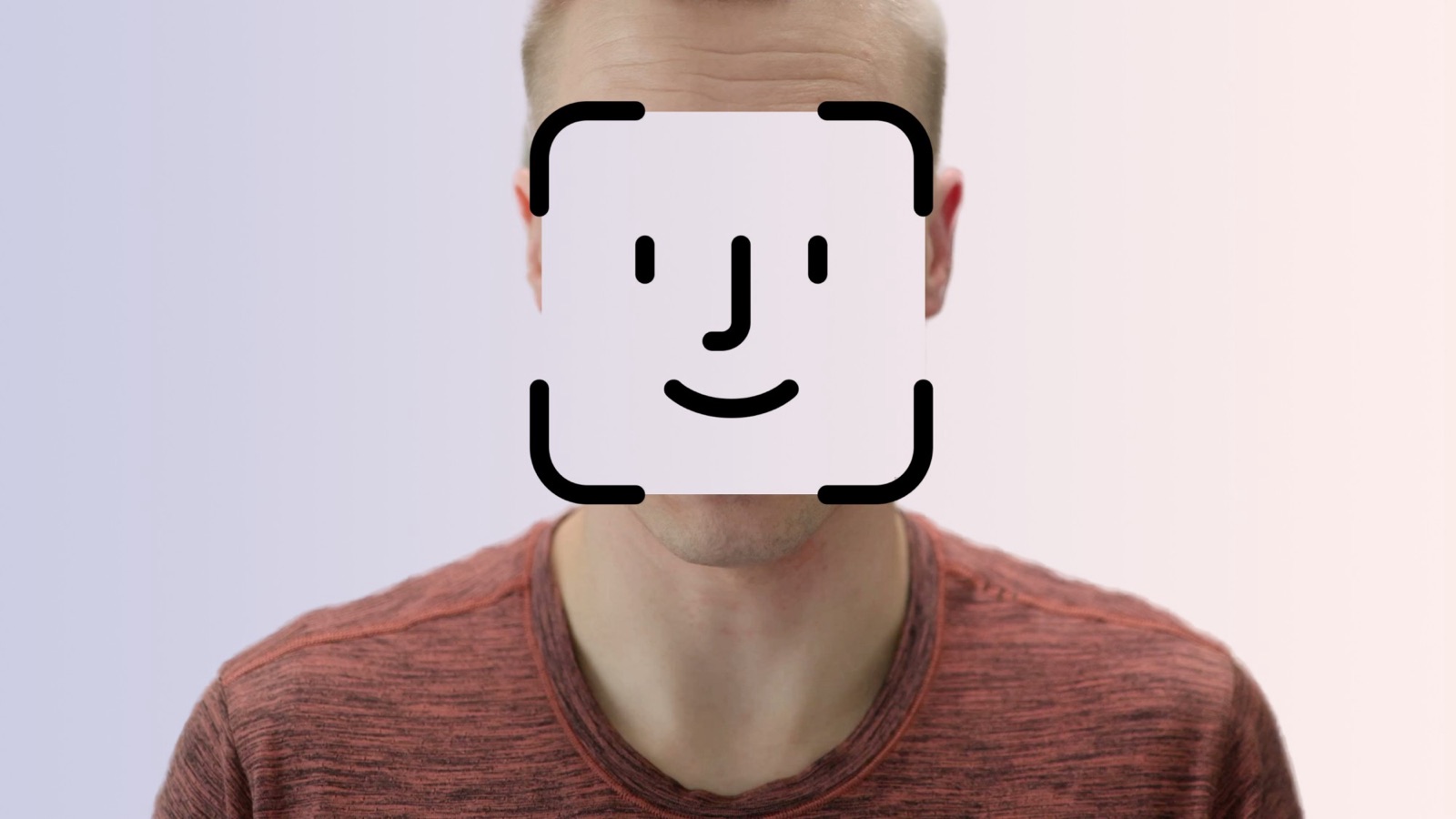
There are a few options for securing your iPhone: Touch ID, Face ID, a 4-digit passcode, or an alphanumeric passcode, meaning letters plus numbers (and symbols). Many of you probably have Touch ID or Face ID. As I say in the video, the chance of someone else having a fingerprint that unlocks Touch ID as you is one in 50,000, and for Face ID it's one in 1,000,000. So Face ID is more secure, unless you have a twin or a very close family member with very similar facial structure, which is where vulnerabilities come in.
You'll have both biometric authentication and a passcode. As we established, a 4-digit passcode has 10,000 combinations and can be cracked almost instantly by a computer, while an alphanumeric passcode is almost impossible to crack by brute force. My own setup is a strong Apple account password, two-factor authentication, Face ID, and, as a backup to Face ID, a long alphanumeric passcode instead of a 4-digit one, because the security benefit grows exponentially with every extra character. Typing an alphanumeric passcode every time you unlock your phone would be a nightmare, which is why Face ID and Touch ID are so nice. You rely on them and only use the passcode as a backup, while keeping strong authentication in front of your password manager.
Watch for shoulder surfing
Another thing to look out for is shoulder surfing. You might be typing your passcode on your phone at a concert or in a public place, and someone behind you watches you type it. If they can then get hold of your phone, your whole world is available to them. One benefit of a passcode longer than 4 digits is that it's a lot harder to memorize at a glance.
Apple Passwords and iPhone security settings
Here are specific things you can do right now to improve your security. The steps use an iPhone (iOS), so menu names may differ on your device.
The Passwords app
The Passwords app comes downloaded on everyone's iPhone. It asks for Face ID when you open it. Inside you can see all your passwords, all your passkeys, Wi-Fi passwords, anything recently deleted, any two-factor authentication codes, and anything that might require attention. You can even share passwords with people in your family or friends, which is a way to share strong passwords securely.
You might be asking how to make a strong password. The password manager makes one for you right off the bat. You type in the username you want to use and the website, and you're ready to go. Password managers don't just store your passwords, they also help generate them.
Once a password is set up, and if that website offers passkeys, you can add a passkey from right below it and walk through the settings. You can also set up two-factor authentication there, which generates a code you can use every time. If you're in the Apple ecosystem, using Apple Passwords and Safari, it fills in the code and password for you as long as you use Touch ID on your Mac or Face ID on your iPhone. You get the strength of these security measures with the convenience of just looking at your phone.
Face ID and passcode settings
Go into Settings and scroll down to Face ID & Passcode. It asks for your passcode, so I did that off screen. There are several options:
- Face ID for several different things. Choose where you use it.
- Face ID with a mask. Very helpful during the height of the COVID pandemic.
- Require attention for Face ID. If you're looking away, it won't work. That stops someone from holding your phone up to your face and unlocking it without you knowing.
- Stolen Device Protection. I recommend turning this on. It adds a layer of protection if someone steals your iPhone. If it recognizes that your phone is in a different location, it adds extra security layers.
- Locked vs. unlocked access. You can choose what's available on your phone while it's locked and what needs to be unlocked.
iCloud sign-in and recovery contacts
Go to Settings, then iCloud, then Sign-In & Security. There you can change how your two-factor authentication comes through, either as codes on your other devices or as SMS messages to your phone. You can also set up recovery contacts. I won't show mine, but essentially, in a worst case where you can't authenticate yourself, a trusted contact can help you recover your account.
Impersonation risk detection
If you're worried about social engineering like phishing, Apple has built in a new setting. Adoption is still rolling out, but if you turn it on, it could potentially help with phishing and other social engineering schemes. In Settings, scroll down to Privacy & Security, then all the way down to Impersonation Risk Detection, and toggle it on. It shares some information with developers in a very private way. You can read Apple's documentation on it. The aim is to flag when an app, or someone in an app, acts in a pattern that matches common scams. I recommend it if you feel particularly vulnerable to these schemes, or if you don't feel comfortable identifying those types of risks.
Keep your software updated
One last tip: update the software on your devices as often as updates are available. Updates include new features, but they also include critical security fixes. It's a constant game of whack-a-mole. As bad actors get more sophisticated, companies and device manufacturers need to be equally sophisticated in locking things down. Any time your device isn't up to date, there is likely a security risk at play, however minimal it might be.
Final thoughts
If you set up two-factor authentication and passkeys wherever possible, use a password manager, and use strong passwords, you'll be well on your way to keeping yourself protected. As with all of these topics, we could go down quite a few rabbit holes, but I wanted to make sure we understand the breadth of this topic.
This was the second video in my series Technology for Normal People. If you missed the first video, about digital minimalism, I'd highly recommend going back to watch it, because it sets the foundation for this entire series. Video link: Watch Digital Minimalism. The next video in the series is about privacy.
Technology for Normal People
- Digital Minimalism: Watch the video
- Digital Security (this post)
- Digital Privacy (next)
- Big Tech
- Tech Ecosystems
- Tech Strategies: Watch the video
I'm Mitchell. I make videos that help everyday people take control of their technology. Subscribe: https://www.youtube.com/@mitchelltaylor. More about me: https://www.mitchelltaylor.dev