Nissu
A simple recipe app for iPhone and iPad. Save recipes from any website, plan your meals, send ingredients to your grocery list and cook with timers on your Lock Screen. Everything stays private and syncs with your own iCloud.

Support
Guides and answers for Nissu on iPhone and iPad. Browse by topic, or type a few words to find what you need.
Getting started 4 articles
Which devices does Nissu run on?
Nissu runs on iPhone and iPad with iOS or iPadOS 17 or later. A few features need iOS 26 or later:
- Saving recipes from Safari needs iOS 26 and Apple Intelligence.
- Timers that ring when Nissu is closed need iOS 26.
Everything else works on iOS 17 and later.
Do I need an account?
No. There's nothing to sign up for. Nissu stores your recipes on your device, and if you're signed in to iCloud it syncs them through your own iCloud account.
Why is my library empty the first time I open Nissu?
Nissu starts with no recipes, so your library holds only what you add. Tap New Recipe or Import Recipes on the empty screen, or see Adding recipes.
If you've used Nissu on another device, your recipes download from iCloud within a minute or two.
Is Nissu free?
Yes. Every feature is free, with no ads and no subscription. You can leave an optional tip, but it doesn't unlock anything.
Adding recipes 6 articles
Typing in a new recipe
Tap More (•••) → Add Recipe → New Recipe. Only the name is required. You can also add:
- a description;
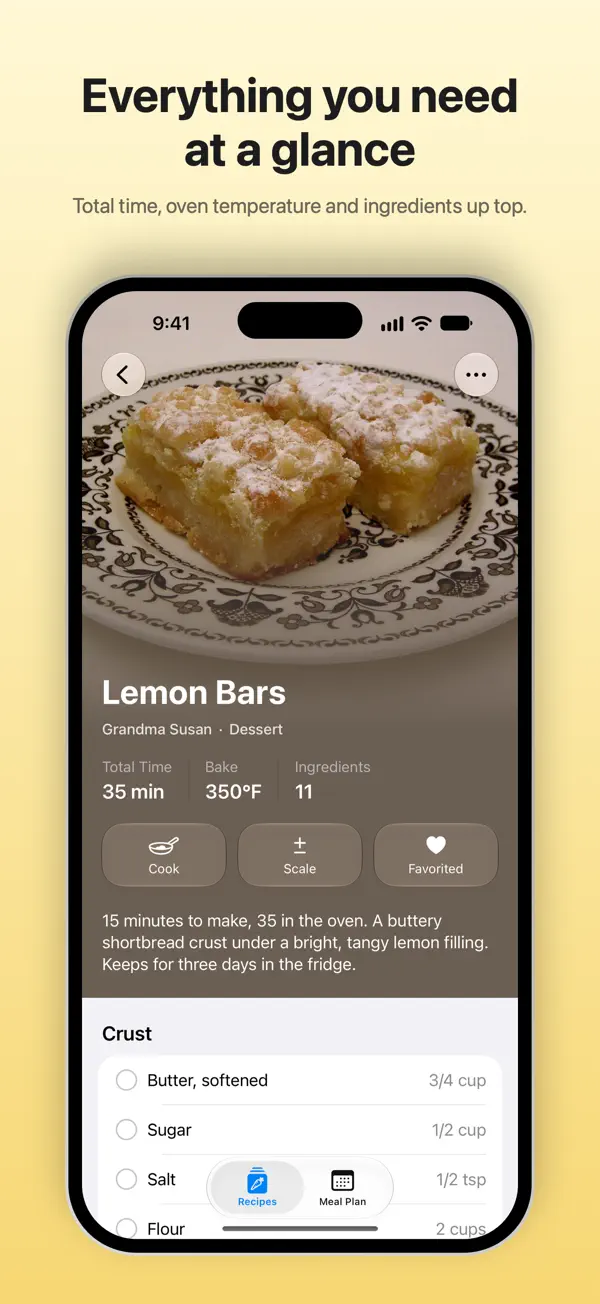
- prep, cook and total time, and an oven temperature;
- ingredients, grouped into sections such as "Crust" and "Filling";
- numbered steps;
- photos.
Total time fills itself in from prep plus cook time. Tap Add to save, or Cancel to throw the recipe away.
Saving a recipe from Safari or another app
On a recipe web page, tap Share, then Nissu. Nissu reads the page on your device with Apple Intelligence and shows you what it found. Tap Save.
The recipe appears next time you open Nissu, with a "Recipe Added" message. If you already have a recipe with the same name, the new one is skipped.
This needs iOS 26 and Apple Intelligence turned on in Settings. If you don't see Nissu in the row of apps, scroll the app row in the share sheet to the end, tap More and turn it on.
“Couldn’t find a recipe on that page”
Some pages don't contain the recipe text, for example a page that only shows a video, or one that needs you to sign in. Others are too long for Nissu to read all of. Try the site's "Print" or "Jump to recipe" page, or type the recipe in.
If Nissu says Apple Intelligence isn't available or is still getting ready, check that it's turned on in Settings → Apple Intelligence & Siri, then try again once it has finished downloading.
Pasting recipe text
Tap More (•••) → Add Recipe → Paste Recipe Text. The bar under the text tells you which recipes Nissu found. Tap Add to save them.
Pasting works with text in Nissu's own recipe format, such as a recipe someone shared from Nissu with Share Recipe. For a recipe on a website, share it to Nissu from Safari instead.
Importing recipe files
Tap More (•••) → Add Recipe → Import from Files and choose one or more text files in Nissu's recipe format. A file can hold many recipes.
Afterwards Nissu tells you how many it imported. Recipes with a name you already have are skipped.
Adding photos to a recipe
Edit the recipe and tap Add Photos. Only the photos you pick are shared with Nissu, not your whole library.
The first photo becomes the recipe's header and card picture. To remove one, long-press it and choose Delete Photo.
Your library 6 articles
Finding a recipe
Tap the magnifying glass at the top of your library and type part of a recipe's name. Close the search with ✕.
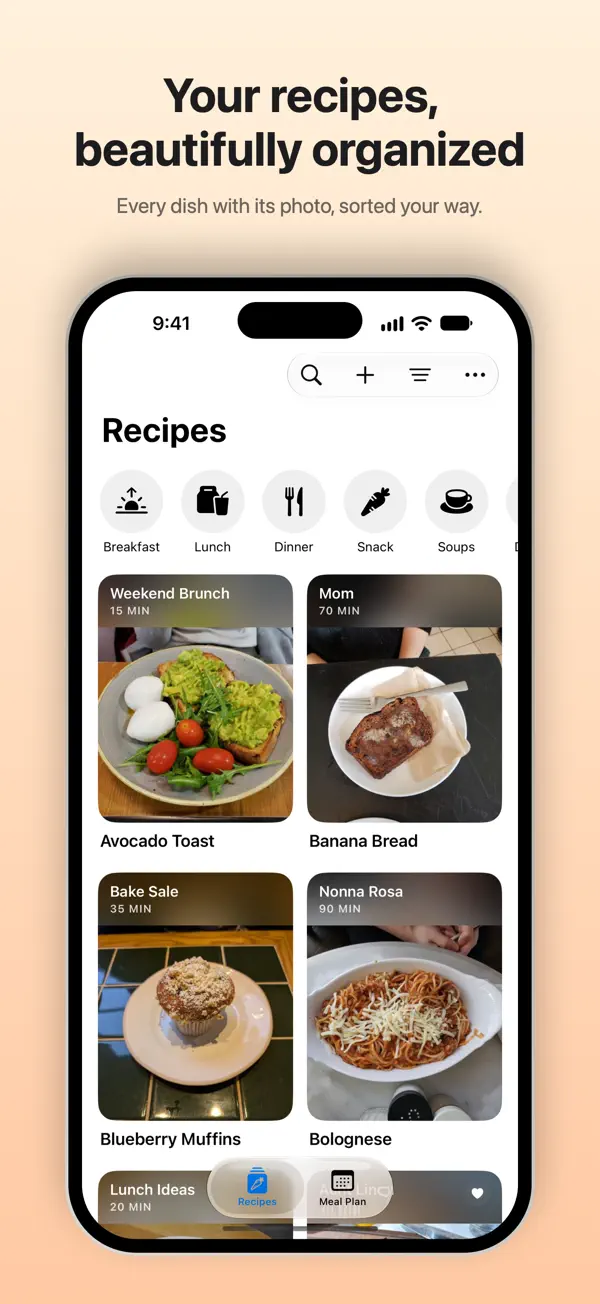
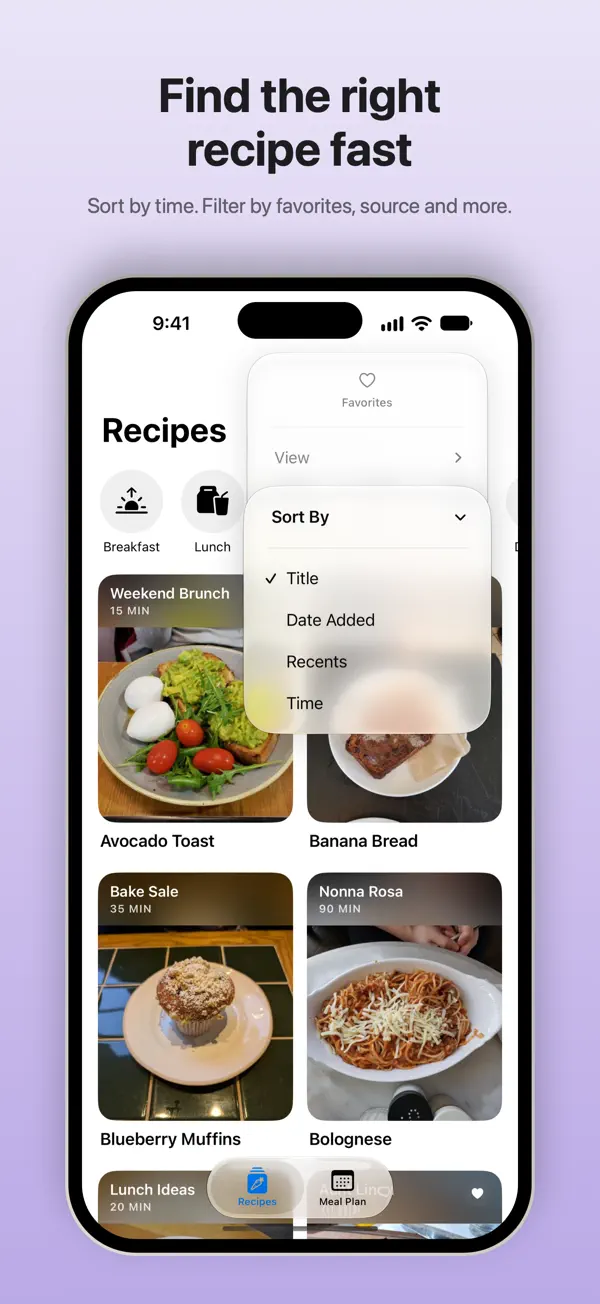
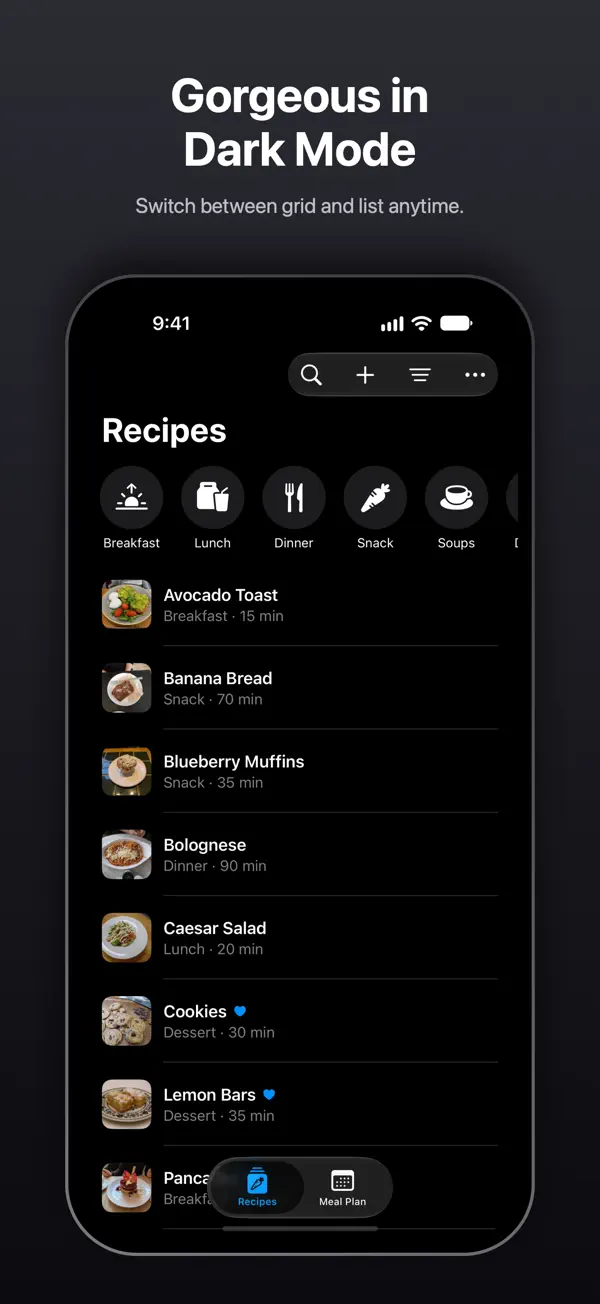
Sorting, filtering, and grid or list view
Tap the View Options button (the one with lines) to:
- switch between grid and list;
- sort by title, date added, recently opened or total time;
- show only favorites;
- filter by total time or source.
The round icons along the top filter by category. Tap one to show only that category, and tap it again to show everything.
Favorites
Tap Favorite on a recipe, or long-press it in your library. Favorites show a heart. Turn on Favorites in View Options to see only them.
Editing a recipe
Open the recipe and tap More (•••) → Edit Recipe. Your changes are saved only when you tap Save.
Deleting recipes
Long-press a recipe and choose Delete, or swipe left on it in list view. To delete several at once, tap More (•••) → Select, choose them, and tap Delete.
Deleting is permanent and removes the recipe from all your devices and from anyone you share your cookbook with.
Cooking 5 articles
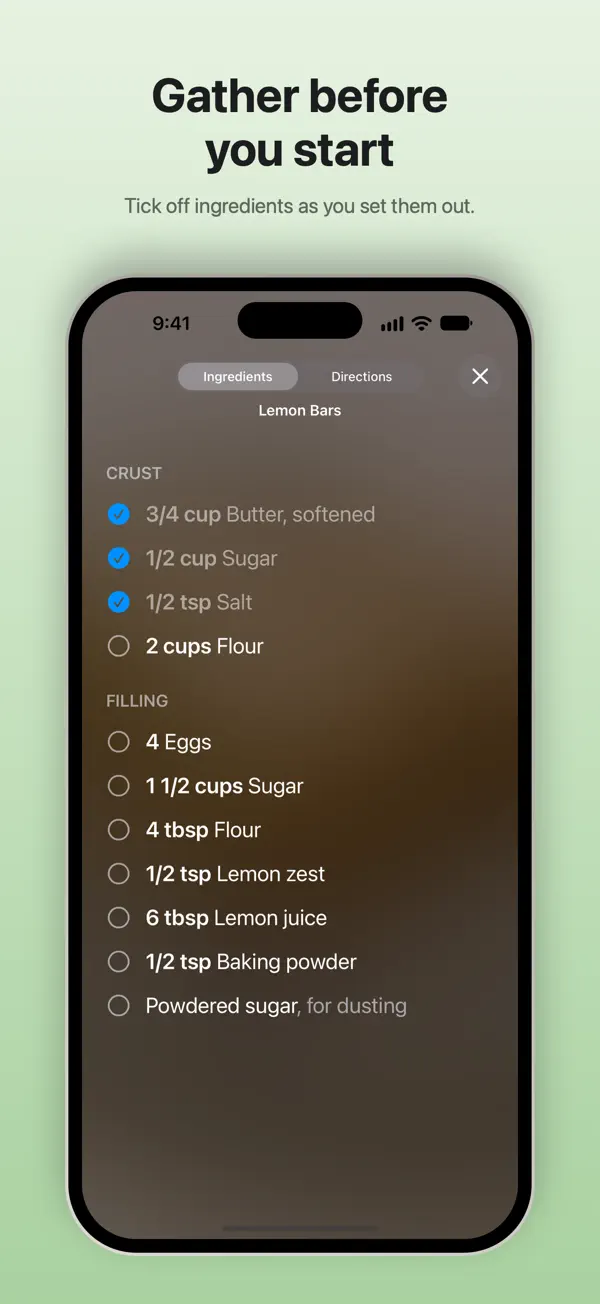
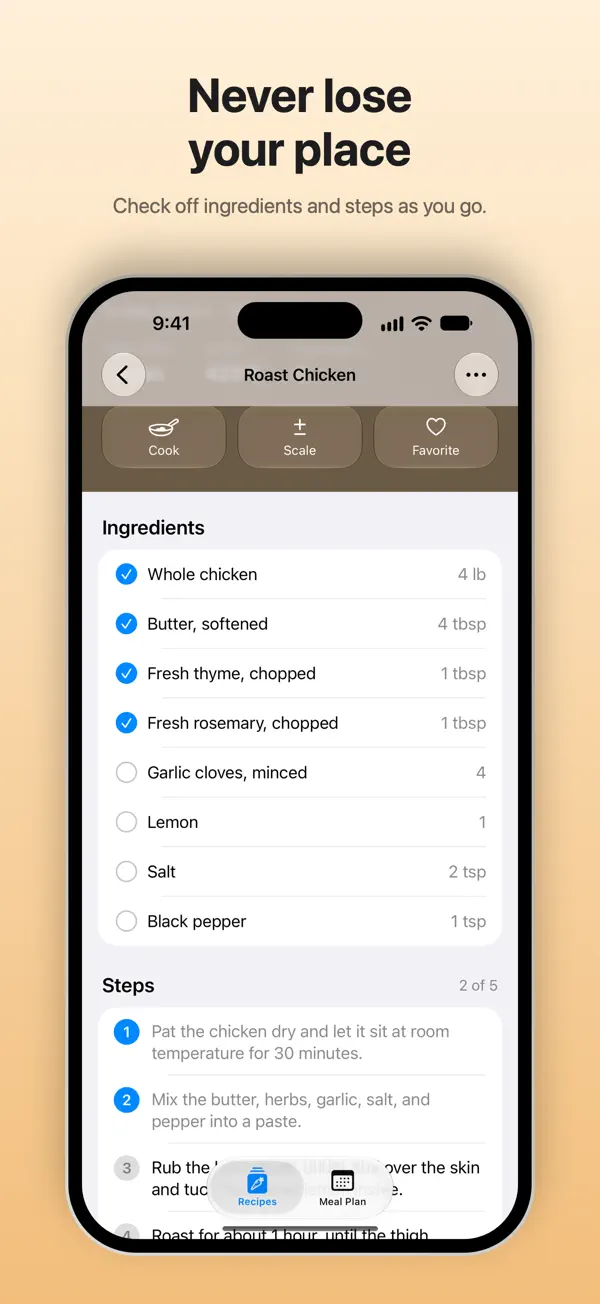
Ticking off ingredients and steps
On a recipe, tap an ingredient once you've gathered it, and tap a step once it's done. The Steps heading shows how far along you are.
Ticks are cleared when you leave the recipe. To clear them sooner, tap More (•••) → Reset Progress.
Doubling or halving a recipe
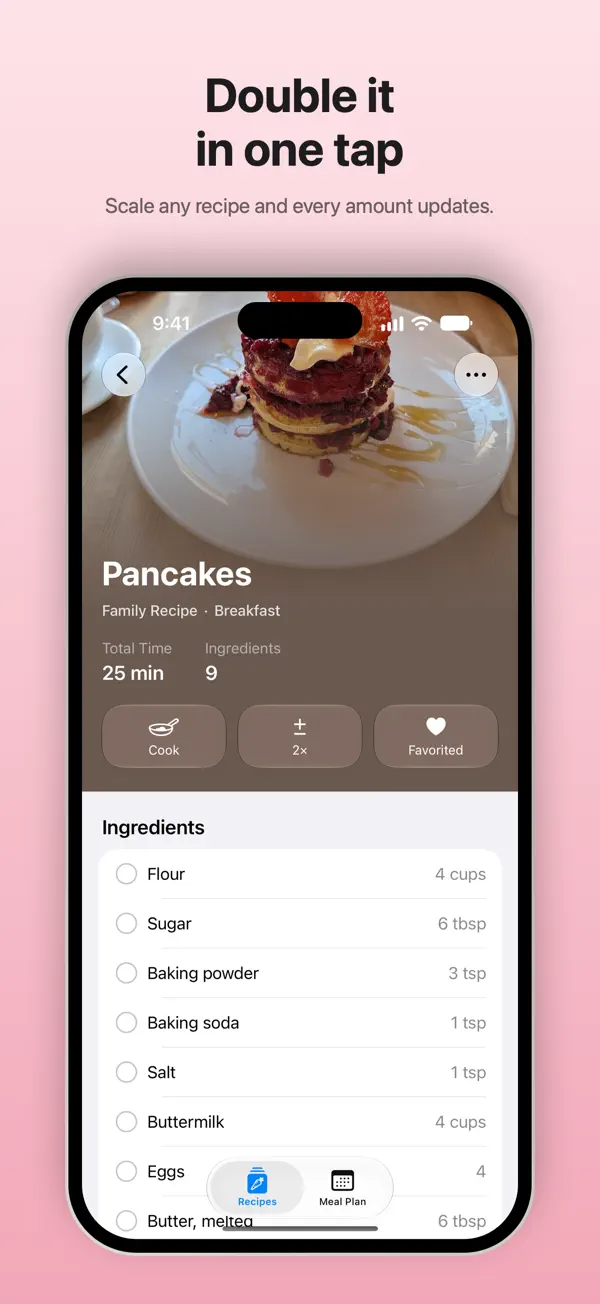
Tap Scale on the recipe and use − and + to choose from ¼× to 10×. Every amount with a number updates as you go, including fractions such as 1½. Tap ✓ to close the panel.
The original recipe isn't changed, and the scale goes back to 1× when you leave it.
Cook mode
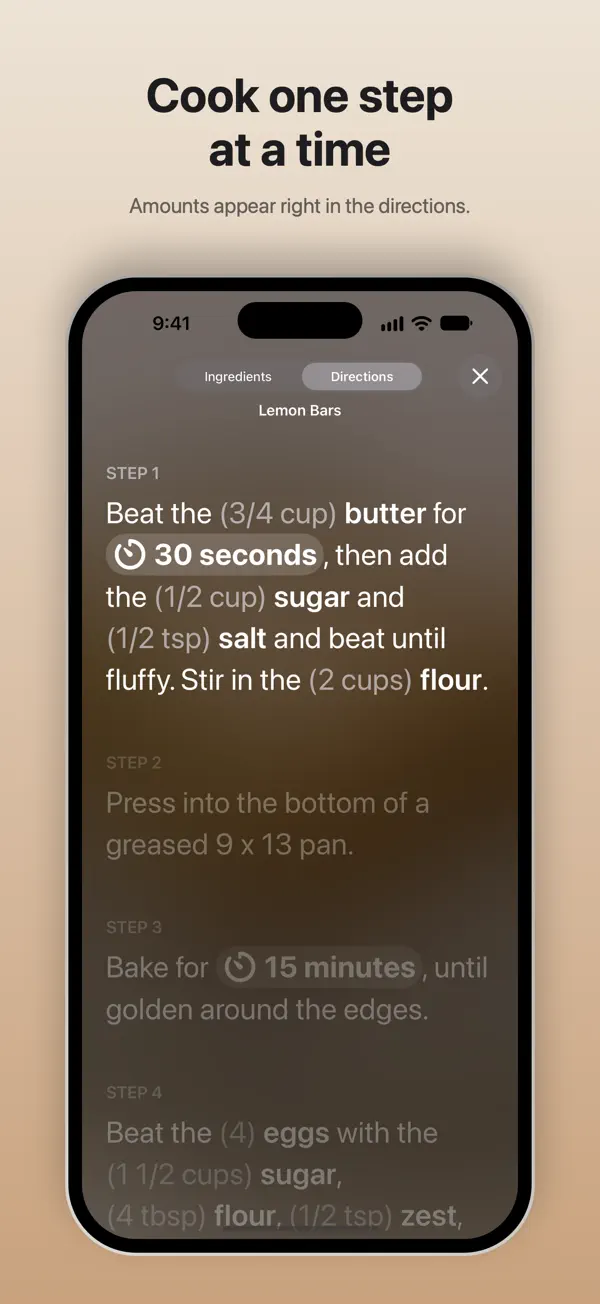
Tap Cook for a full-screen view with one step at a time, in large text. Scroll to move between steps, or tap a dimmed step to jump to it. Switch to Ingredients at the top to see what you need.
Amounts in each step follow the recipe's scale. Your screen stays on while cook mode is open.
The step text follows your text size in Settings, and dimmed steps stay readable with Increase Contrast on.
Starting a timer
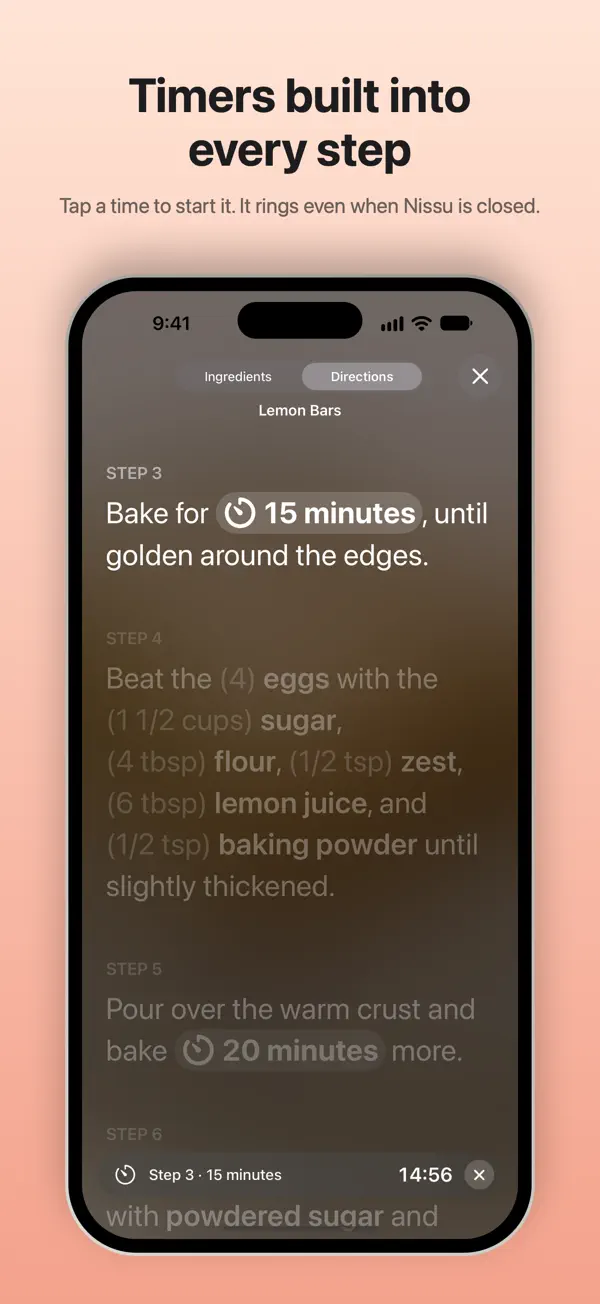
In cook mode, times in a step ("15 minutes") are shown as buttons with a timer icon. Tap one to start a timer. It appears at the bottom of the screen with the step it's for. You can run several at once.
On iOS 26 and later, timers also ring like a Clock timer even when Nissu is closed, your phone is locked or on silent. The countdown appears on your Lock Screen and in the Dynamic Island.
My timer didn't ring when Nissu was closed
The first time you start a timer, Nissu asks to use alarms. If you tapped Don't Allow, timers only ring while Nissu is open. To turn this back on, go to Settings → Apps → Nissu and allow Alarms.
This needs iOS 26 or later.
Meal plan & groceries 3 articles
Planning your meals
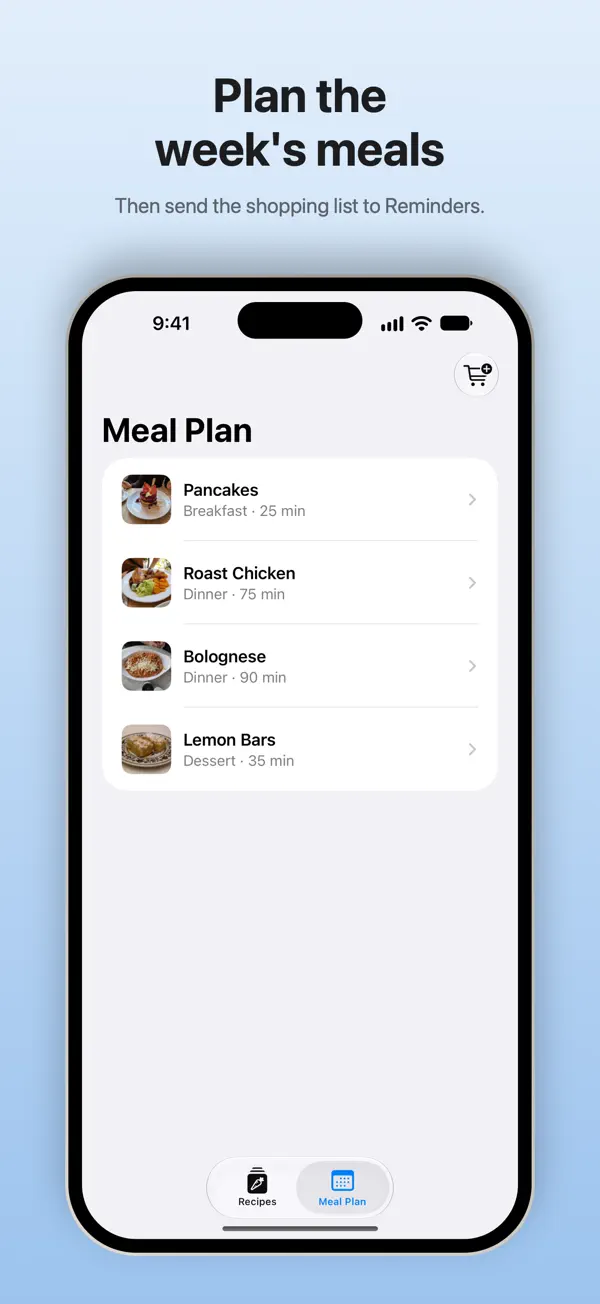
Long-press a recipe and choose Add to Meal Plan, or swipe right on it in list view. Planned recipes appear in the Meal Plan tab.
Swipe a recipe in the plan to take it off. The recipe stays in your library.
Sending ingredients to Reminders
In the Meal Plan tab, tap Add to Grocery List. Nissu adds each ingredient to a list called "Grocery List" in the Reminders app, and creates the list if you don't have one.
The same ingredient in the same unit is combined: 1 cup of sugar and ½ cup of sugar become 1½ cups. Different units, such as cups and tablespoons, stay separate.
Each tap adds a new set of reminders, so clear the old ones first if you're starting over.
Nothing was added to Reminders
Nissu needs full access to Reminders to find your Grocery List. Go to Settings → Apps → Nissu → Reminders and choose Full Access, then try again. You also need a Reminders account, such as iCloud, turned on.
iCloud & sharing 5 articles
How syncing works
If you're signed in to iCloud, your recipes, photos, favorites and meal plan sync to every iPhone and iPad signed in to the same Apple Account. There's nothing to set up.
Changes usually arrive within a minute while both devices are online.
My recipes aren't syncing
Check each device:
- it's signed in to the same Apple Account;
- iCloud is turned on for Nissu in Settings → [your name] → iCloud;
- it's online and your iCloud storage isn't full.
Then open Nissu on both devices and give it a minute.
Stopping sharing, or leaving a shared cookbook
Tap More (•••) → Share Cookbook. If it's your cookbook, you can remove people or tap Stop Sharing. If someone shared it with you, tap Remove Me.
Moving to a new iPhone or iPad
Sign in to the same Apple Account, install Nissu and open it. Your recipes download from iCloud automatically.
Tips, privacy & feedback 4 articles
What do tips do?
Tips are a way to say thanks and support future updates. They don't unlock anything, because everything in Nissu is already free. Tap More (•••) → Leave a Tip.
Apple handles the payment, so I never see your payment details. For a refund, go to reportaproblem.apple.com.
What data does Nissu collect?
None. There are no accounts, analytics, ads or tracking. Your recipes stay on your devices and in your own iCloud account, and recipes from the web are read on your device. See the privacy policy for details.
Deleting all your Nissu data
Delete Nissu from your devices, then remove its iCloud data in Settings → [your name] → iCloud → Manage Storage → Nissu. This permanently deletes your recipes from every device.
Sending feedback or reporting a bug
Email nissu@mitchelltaylor.dev. For a bug, include what you were doing, which device and iOS version you're on, and what you saw. A screenshot helps.
No articles match. Try different words, or email nissu@mitchelltaylor.dev.
Still stuck? Email nissu@mitchelltaylor.dev and say what you were trying to do, which device you're on, and what you saw. I read every message.
Privacy Policy
The short version: Nissu doesn't collect any data about you. Your recipes stay on your devices and in your own iCloud account. We have no servers, no accounts, no ads, no analytics and no tracking, so we never see your recipes or anything else about you.
Who we are
Nissu is a recipe app for iPhone and iPad made by Mitchell Taylor ("we", "us"). This policy explains what happens to your information when you use Nissu.
Information we collect
None. Nissu doesn't send your recipes, photos, meal plans or any other personal information to us or to any third party. There are no analytics, crash-reporting, advertising or tracking tools in the app.
Where your recipes are stored
- On your device. Recipes, photos, favorites, your meal plan and your cooking progress are stored on your iPhone or iPad.
- In your iCloud account. If you're signed in to iCloud, Nissu uses Apple's iCloud (CloudKit) to sync your recipes between your devices. This data is stored in your private iCloud account, managed by Apple under Apple's Privacy Policy. We can't access it.
Sharing a cookbook
If you choose to share your cookbook, Apple's iCloud sharing makes your recipes available to the people you invite, and theirs to you. Apple handles the invitations and the list of who is sharing. Only the people you invite can see a shared cookbook, and you can stop sharing at any time. We don't receive any of this information.
Saving recipes from the web
When you share a web page to Nissu from Safari or another app, Nissu downloads that page directly from the website you shared, as your browser would, and reads the recipe from it. The recipe is extracted on your device with Apple Intelligence. The page and the recipe aren't sent to us or to any other service. The website you're saving from sees an ordinary request for its page.
Permissions Nissu may ask for
Nissu asks only when you use the feature that needs it, and works without them otherwise. You can change any of these in the Settings app.
- Reminders: to add the ingredients from your meal plan to a "Grocery List" in the Reminders app. Nissu only adds reminders; it doesn't read or send your other reminders anywhere.
- Alarms: to set cooking timers that go off even when Nissu is closed. Timers show on your Lock Screen and in the Dynamic Island, and stay on your device.
- Photos: when you add a photo to a recipe, you pick it with the system photo picker. Nissu only receives the photos you choose, not your photo library.
- Files: when you import recipe files, Nissu only reads the files you pick.
Tips
Tips are in-app purchases handled entirely by Apple through the App Store. We don't receive your payment details or identity, only the anonymous sales reports Apple gives all developers.
Information Apple provides to developers
Apple may share aggregated, anonymous statistics with us through App Store Connect, such as download numbers and, if you've agreed to share them with developers, crash reports. These don't identify you. You can control this in Settings > Privacy & Security > Analytics & Improvements.
Children
Nissu doesn't collect personal information from anyone, including children under 13.
Your choices and rights
Because we hold no data about you, there's nothing for us to give you, correct or delete. You're in control of your recipes:
- Delete a recipe in the app, and it's removed from your devices and iCloud.
- To remove everything, delete Nissu and remove its data in Settings > [your name] > iCloud > Manage Storage.
- To stop syncing, turn off iCloud for Nissu in Settings.
Changes to this policy
If we change how Nissu handles information, we'll update this page and the date at the top. If a change means Nissu would start collecting data, we'll make that clear in the app before it happens.
Contact
Questions about this policy? Email nissu@mitchelltaylor.dev