Digital Minimalism for Normal People
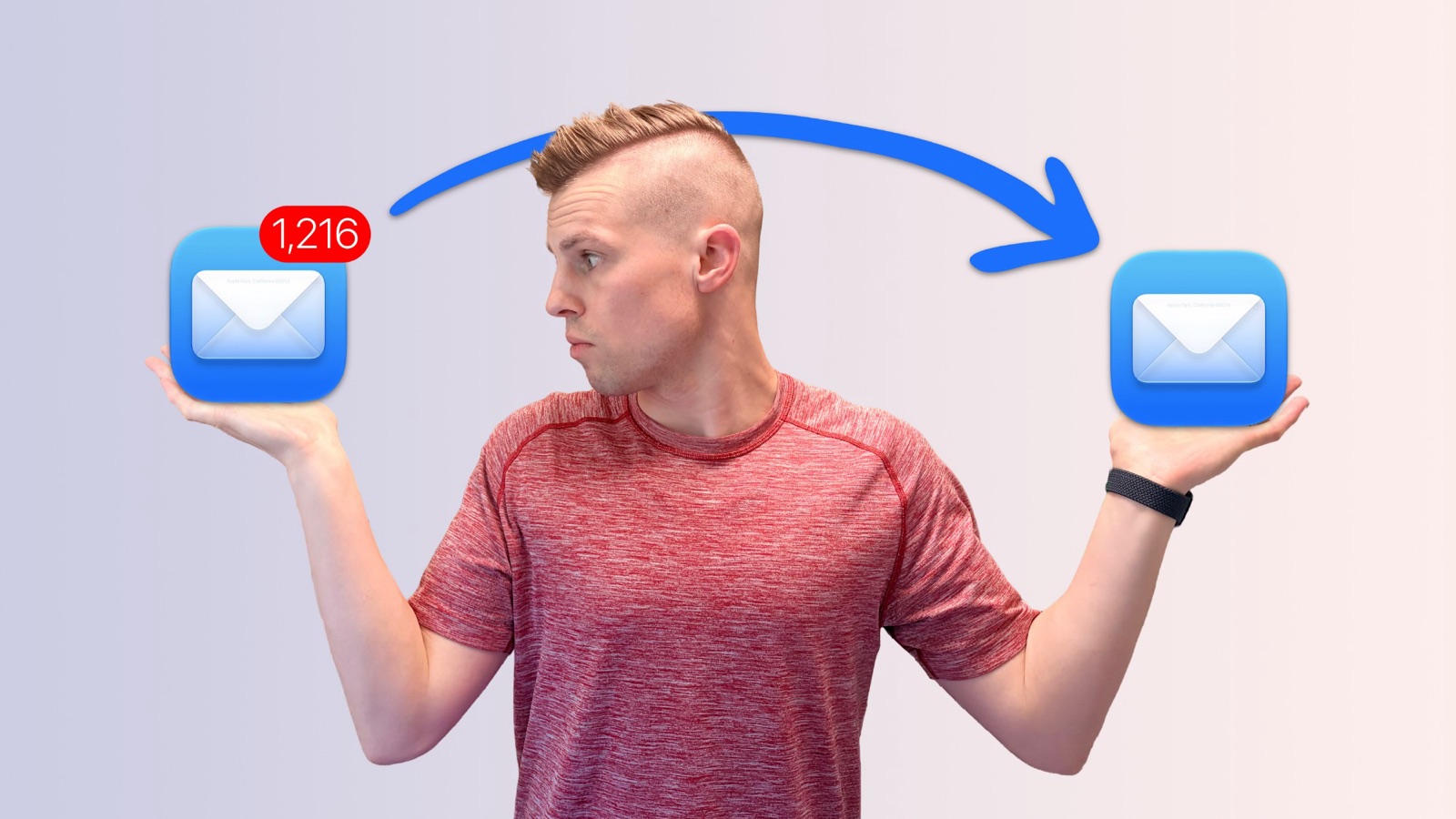
Disclaimer: The video this post is based on was written and spoken entirely in my own words, and AI was not involved in scripting it. This blog post was generated by AI exclusively from the transcript of that video.
How to make your phone work for you
How do you manage all the notifications you get in a way that isn't overwhelming? How do you get your phone to work the way you want it to? Those are the questions this post answers. It's the written version of the first video in my series Technology for Normal People. Video link: Watch on YouTube.
I'm Mitchell. I've worked in the technology industry and in business strategy, and in smart home for the last seven years. I'm taking a step away from all of that to pursue my own passions. I've always loved teaching, and I want to share what I've learned through YouTube, to help you take control of the tech in your life, because it should work for you, not control you.
Here is the roadmap for the series:
- Digital minimalism (this post)
- Digital security
- Digital privacy
- Big tech companies
- Tech ecosystems
- Technology philosophies
These are all things I get questions about all the time. By the end of the series, you'll know how technology will work best for you, what to look for, and how to apply that to your buying decisions and your time spent. Technology should help us achieve our goals, not take time away from them.
What is digital minimalism?
I'm a minimalist at heart, and that applies to several areas of my life. The general principle of minimalism is to keep what's most important so you can focus your time and attention on the things of most value, and to eliminate distractions and clutter so the things most important to you stay central in your life.
I found that very helpful in the physical world. There are lots of authorities on the subject, like Marie Kondo, and Joshua Becker is another good one on YouTube. I'm not going to dive into that here. I want to talk about how it applies to our digital lives, because I think the same principles apply. There's a great book out there called Digital Minimalism, and I'd encourage you to read it, but this post is my own thoughts and opinions on how to use technology in your life, not a beat-for-beat summary of that book.
Some of these steps might seem daunting at first. But if you take the time to set things up intentionally up front, you'll reap the benefits for years to come. It's a little short-term pain for a lot of long-term gain. I think that's where many people fall short: they expect technology to solve problems in their lives without putting in the work up front to organize it, clean it, and focus it. Once you do, you'll be set. But it does take some work, so fair warning.
Set up your home screen
Your home screen is something you'll interact with dozens, if not hundreds, of times a day, so let's make sure it's set up for success.
My home screen takes significant advantage of widgets. At the top is a calendar widget, and under it is a stack with my notes and then calendar again. Below that are two smaller widget stacks, all health based. The one on the left shows my readiness score, and I can flip through to see my training load and my activity rings. The one on the right is about my sleep, with my sleep score and my vitals in a daily view and a weekly view.
When I open my phone, I want glanceable information that's pertinent to me: How did I sleep? How's my readiness score? What's coming up on my calendar? I use Apple Reminders for my to-do list, so I have a few lists I can swipe through and jump into quickly. I also have four apps I use frequently, and my dock holds the ones I use most: Messages, Home, Photos, and Phone.
Swipe left and you get your Today View. Everyone has this, and you can add widgets there too. Mine has the weather at the top, the battery percentages of my devices, and underneath the scores of the sports teams I follow.
One screen plus the App Library
You might be thinking this isn't unique. What might be unique, and how it factors into digital minimalism, is that I only have one screen. Swipe right past it and you get the App Library, where all my other apps live.
The idea is that I jump into an app based on my widgets, an app on my home screen, or a notification that comes through. I only look at other apps if I have a specific reason to. For example, I like Apple News, and I can jump in and browse, but that's a very intentional act. I won't do it by accident because it's sitting on my home screen. My home screen should reflect the things that are most important to me and that I want to spend the most time on.
How to set it up
In Settings, scroll down to Home Screen & App Library. Here's what I changed:
- New apps go to the App Library. When I add a new app from the App Store, it goes straight to my library instead of cluttering my home screen. I have to add it to the home screen intentionally.
- No badges in the App Library. I don't want visual clutter telling me to open apps. Going to an app should be an intentional decision for a single purpose, not just to clear the red badges.
- Search button off. There's a toggle for the search button that shows up on the home screen. I keep it off for visual cleanliness.
Here's another quick tip. Press and hold on your home screen, then tap the dots. You'll see all your pages and can quickly get rid of them by swiping up, delete them, or rearrange them. If you remember dragging one app all the way across screens in the old days, those days are over. You can manage your app pages much more efficiently now.
Delete the apps you don't need
Another thing that matters to me is reducing the number of apps I have. Every app on my phone has a specific purpose. In most cases it needs a dedicated app, or the app provides so much utility over the website that I keep it. I also go through and cull apps I no longer use.
For example, I don't have any food places, restaurants, or pizza chains on my phone. Everyone wants you to use their app because then it's on your home screen, they can send you notifications, and it's a way into your life. I want to be intentional. If I want to order pizza, I'd rather not have the app staring me in the face every time I look at my App Library. I have to go to Safari and use their website, which is a worse experience. That adds a little friction for things I maybe shouldn't be doing too often anyway.
Why notifications are overwhelming
The other biggest one I see on lots of people's devices, and quite frankly it stresses me out, is notifications. Everyone has so many, and they can be very difficult to wrangle. Here are a handful of strategies to manage them better, feel less anxiety about missing something, and only get the things most important to you.
First, with the advent of artificial intelligence, and Apple Intelligence specifically, your phone can now try to prioritize notifications and show the ones it thinks are most important at the top. It's a pretty decent band-aid for people who don't want to take the time to set things up. But I promise that if you take the time to dial in your notifications, your digital life will be much cleaner and less cluttered.
Notification settings
In Settings, scroll down to Notifications. Here is what I do with each option at the top.
Display as. This controls how notifications show on your lock screen:
- Count shows only a small number at the bottom of the screen.
- Stack shows one notification at the bottom. You can tap it or swipe up to see more. This is what I use.
- List shows multiple notifications on your lock screen, and they stack up.
Choose what works best for you.
Turn notifications off by default. My ground rule is that any time I download an app, I turn its notifications off. I only turn them back on for the apps where I really need them. Apps and the companies behind them want you to download the app and enable notifications right away, because it's one of the permissions they ask for immediately. Then they can bombard you with notifications and promotions in your line of sight on the lock screen. I find it better to be intentional: I only want notifications from certain apps, and I'll check the others when I need to. It's more of a pull than a push.
Scheduled summary. If you like getting notifications from several apps, you can turn on a scheduled summary. You can set summaries at different times of the day, for example at 5 p.m. and 6 p.m. (an example I used on screen, a little redundant). Then choose which apps to include. The screen shows how many notifications you typically get from each app. You can also tap "Show next summary" to see the following one, so if you have a morning and an evening summary, you can look at the evening one as it collects. The summary gathers notifications as they come through, groups them, and shows them to you at a certain time. It's a good option for people who like lots of notifications from several apps but want an easier way to manage them.
Prioritize notifications. Select the apps that are important to you, and they show up at the top of your notification list. That's another good way to focus on what you want to see first.
Suggested notifications. I would not turn this on. It gives you suggestions from many different apps, which is the opposite of what we're trying to do. We're trying to reduce the number of notifications, not increase it.
Per-app notification settings
Further down is the full list of apps on your phone. Tap into one to see the options. I'll use Messages as the example, since it's one of the apps where I have everything on. As soon as I get a message, I want to know about it.
| Setting | What it does and what I choose |
|---|---|
| Allow notifications | Turn it off and you get no notifications, except critical ones on apps that offer them. |
| Critical alerts and time-sensitive notifications | They break through even if your phone is muted or you're in a focus mode, for emergencies and things you really need to know. Smart home and messaging apps use these. I leave them on. |
| Lock screen | Shows the notification when your phone is locked. |
| Notification Center | There are two levels of notifications: the main ones on the lock screen, and the ones in Notification Center, which you swipe up to reach. |
| Banners | A little banner pulls down from the top when your phone is open. I like all of these on. |
| Banner style | The banner shows for a few seconds and goes away, or stays until you interact with it. |
| Sounds | Pick which sound plays. Sounds only play if your phone isn't muted. |
| Badges | The red circle with a number on the app icon. |
| CarPlay and Mac | I want my messages on those devices when I'm using them. |
| Announce notifications | Your AirPods tell you, for example, that you have one new message from someone. |
| Show previews | I only have this on when unlocked, so someone passing by can't read my messages on a locked phone. |
| Notification grouping | Group with other notifications from the same app, or turn it off to show them in reverse chronological order. |
That's basically all the options. I have them all on for Messages, but for most apps I have no notifications turned on at all. For News, for example, I have nothing. I'll go find the news if I want to read it. I don't want it sending me notifications.
Quiet notifications: Notification Center only
If you want notifications on for an app but don't want to be bothered by them, there's a middle option. Take News as an example. Turn notifications on, then turn off sounds and badges, turn them off on the Mac, don't prioritize anything from News, and show it only in Notification Center. You'll still get the notifications, but they won't pop up or get in your face. The only way to reach them is to scroll up from the lock screen.
If you do that for a handful of apps, such as social media and news, you may find it's a faster way to check what's going on without it being in your face.
Final advice
My advice is to go through your phone and find the notifications that mean the most to you. Enable those and turn the others off. Focus on what you want to interact with, and don't let your phone, your apps, and the companies that make them dictate what you see on your device. Your phone is a very personal device. You should set it up in a way that helps you accomplish what you want to accomplish. It takes some work to go through all of this, but once you do, I promise you'll be better off.
There are lots of other ways to apply digital minimalism in your life, such as files, photos, different AI systems, and notes. Each could be its own video. For now, if you set up your home screen, set up your notifications, and make sure only the apps most important to you are on your phone, you'll be well on your way to making technology work for you and not the other way around.
The next video in the series is about digital security, in a way that's approachable and not super technical: just the basics of what you need to know to keep yourself and your family safe.
Technology for Normal People
- Digital Minimalism (this post)
- Digital Security (next): Watch the video
- Digital Privacy
- Big Tech
- Tech Ecosystems
- Tech Strategies: Watch the video
I'm Mitchell. I make videos that help everyday people take control of their technology. Subscribe: https://www.youtube.com/@mitchelltaylor. More about me: https://www.mitchelltaylor.dev